Can't Find That Screenshot? How to Search Your Mac by What's in It
You remember what was in it, not what it's called. Here's how to find any screenshot by the words inside it.

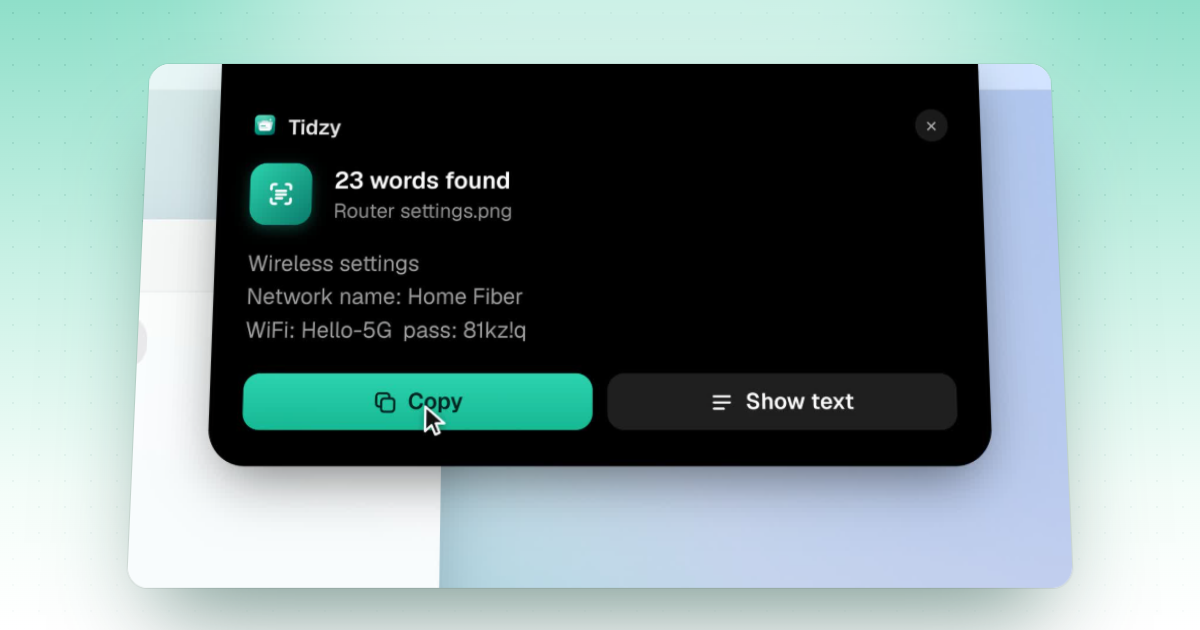
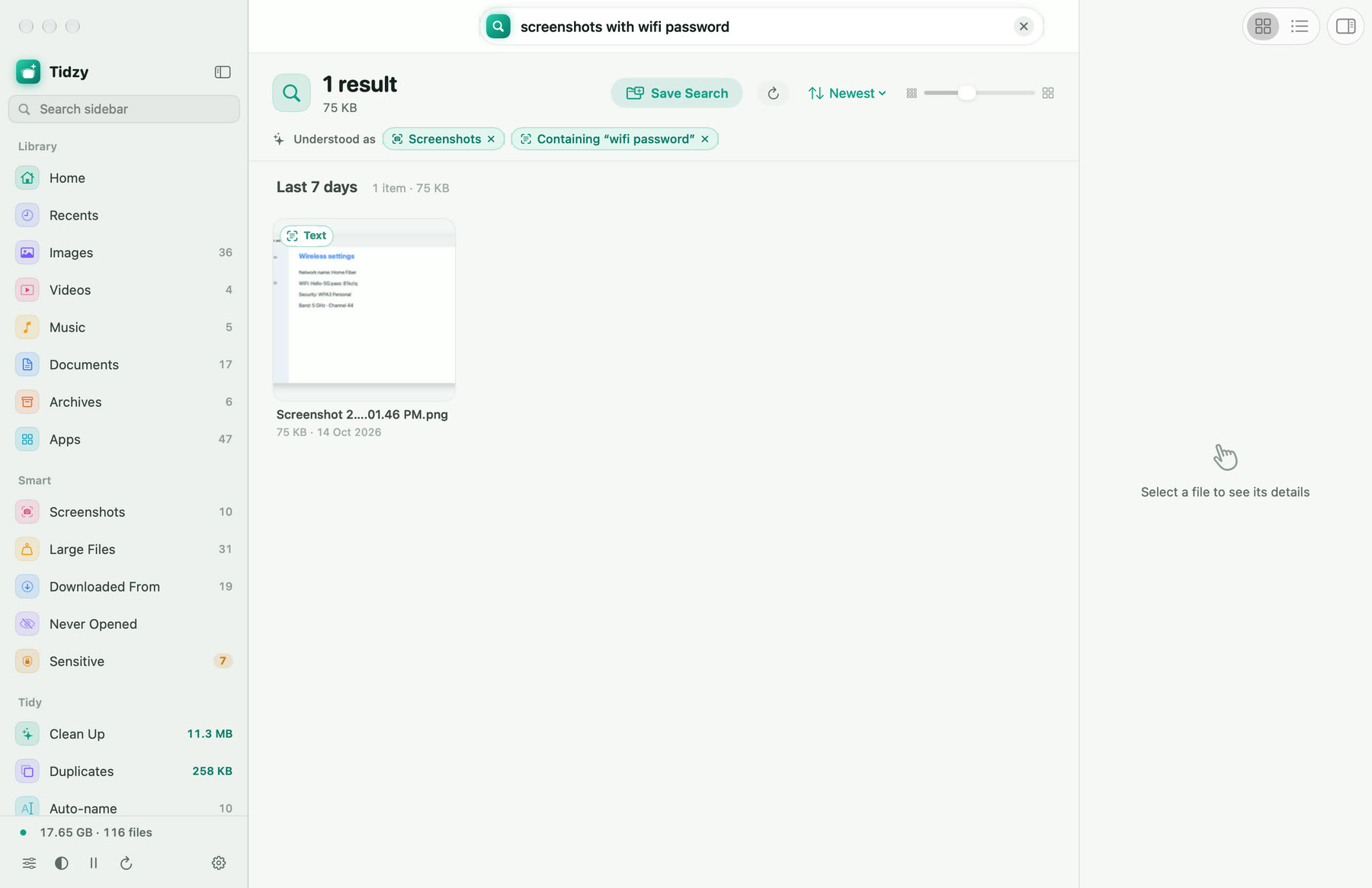
You remember what was in the screenshot, but not what it's called or where it went, and Finder and Spotlight search mostly by name. Tidzy reads the text in every screenshot, photo and PDF on your Mac, so you can type what you remember, like "screenshot with wifi password", and get the file in seconds.
The problem: you know exactly what it said, not where it is
You took a screenshot for a reason. The error message you'd look up later. The settings screen before you changed something. The order confirmation. The slide with the one number your manager asked about. The tweet you wanted to keep.
Then you moved on, and the screenshot joined the pile on your Desktop, named Screenshot 2026-10-12 at 10.14.33 PM, next to forty others with names just like it.
Three weeks later you need it. You remember it perfectly: it was the router page, it had the password on it, it was sometime last month. What you don't remember is its name, because it never had one.
So you open screenshots one by one, squinting at thumbnails, until you either find it or give up and take a new one. If that sounds familiar, you're not disorganized. Your Mac is just looking in the wrong place.
Why your Mac struggles to find it
Mac search is built around names. Finder searches file names. Spotlight is brilliant when you know what something is called.
A screenshot's name is a timestamp, and the information you remember lives in the pixels. Finder can narrow things down by date and type, and Spotlight can sometimes match words inside images, but in practice it's hit and miss for screenshots sitting in folders.
What you actually want is simple to say: search by what's in it.
The fix: search your Mac by what's inside every file
That's the idea Tidzy is built on.
It reads everything once, in the background. When you set Tidzy up, you pick the folders it can see (Desktop, Documents and Downloads to start). It reads the text in every screenshot, photo and scanned PDF there, with Apple's on-device text recognition, and keeps up with new files on its own. Nothing is uploaded. Your files never leave your Mac.
Then you search the way you remember. No exact names, no folders, no filters to set up. Just type:
- screenshot with wifi password
- pdfs from gmail last week
- invoice from september
- photos from whatsapp this month
- zips I downloaded over 100 mb
Tidzy works out what you mean (a type of file, a time, where it came from, words inside it) and shows how it understood you as chips under the search bar. If it guessed something wrong, remove a chip.
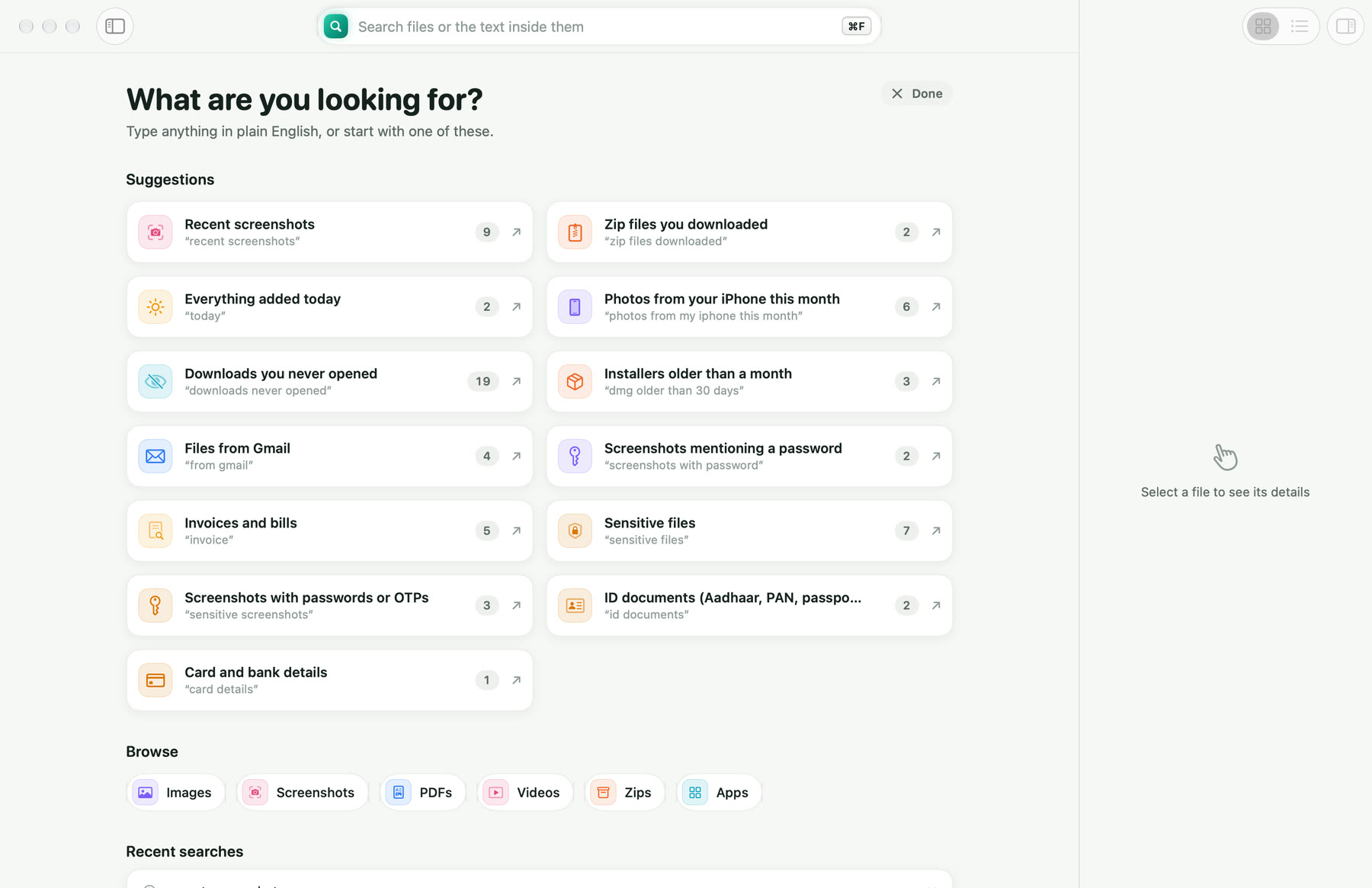
Every result shows its text. Press ⌘T on any image to open Show Text: every line Tidzy read, with your search words highlighted. Copy one line or all of it without opening the file.
Find it from anywhere, in a second
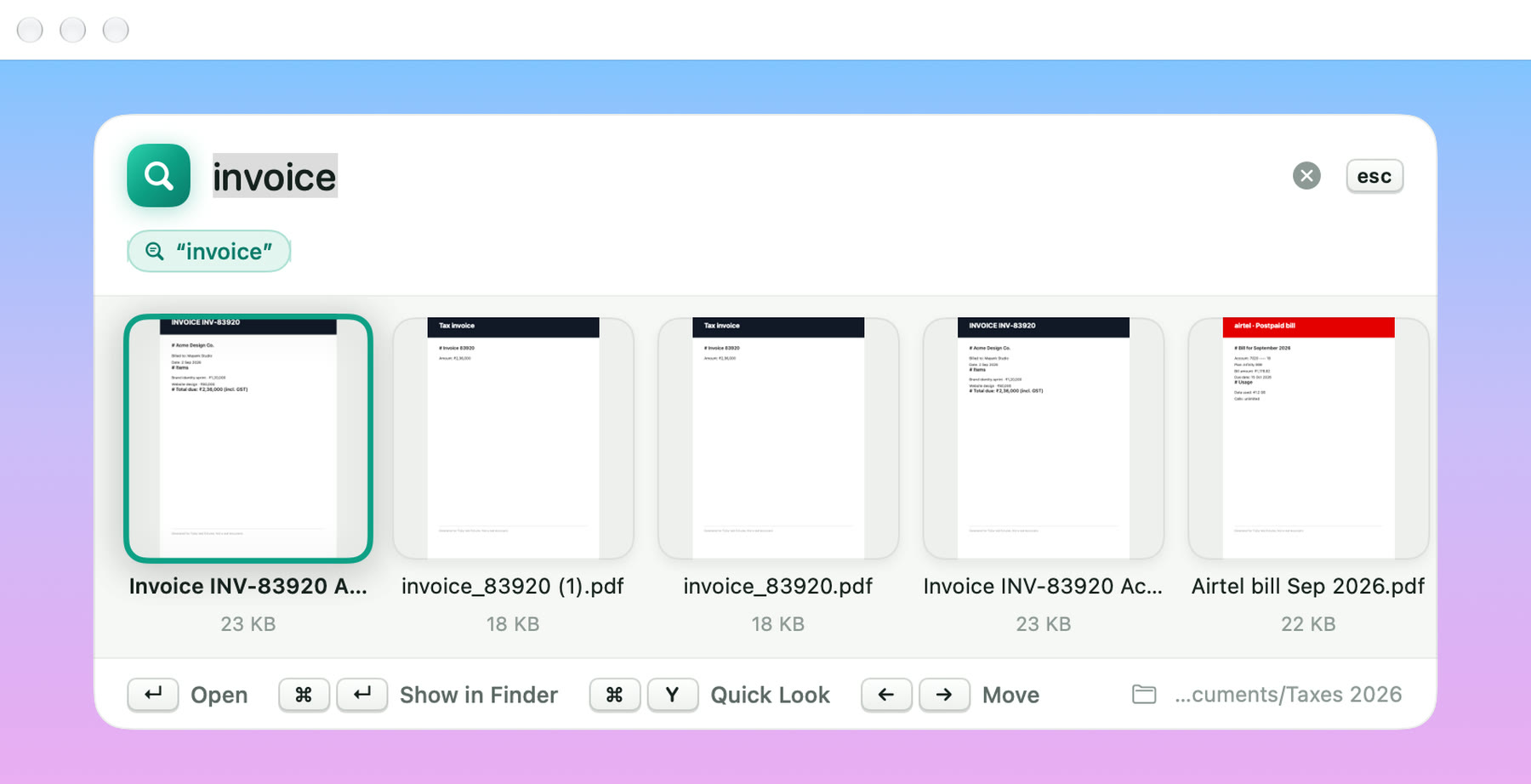
Switching to an app just to search breaks your flow. With Quick Find, press Shift + ⌘ + Space in any app, type a few words, and press Return to open the file, or drag it straight into the email or chat you're writing.
Stop the pile from growing back
Finding old screenshots is half of it. Tidzy also keeps new ones findable:
- Auto-name reads each new screenshot and suggests a name that means something, like the app or site plus the heading on screen and the date. Screenshot 2026-10-15 at 9.41.07 AM becomes Router admin, Wireless settings, 2026-10-15. Approve suggestions with one click, or let it rename new screenshots as they arrive.
- Smart Shelves keep the searches you repeat in the sidebar. "Receipts this month" is a good one for expenses.
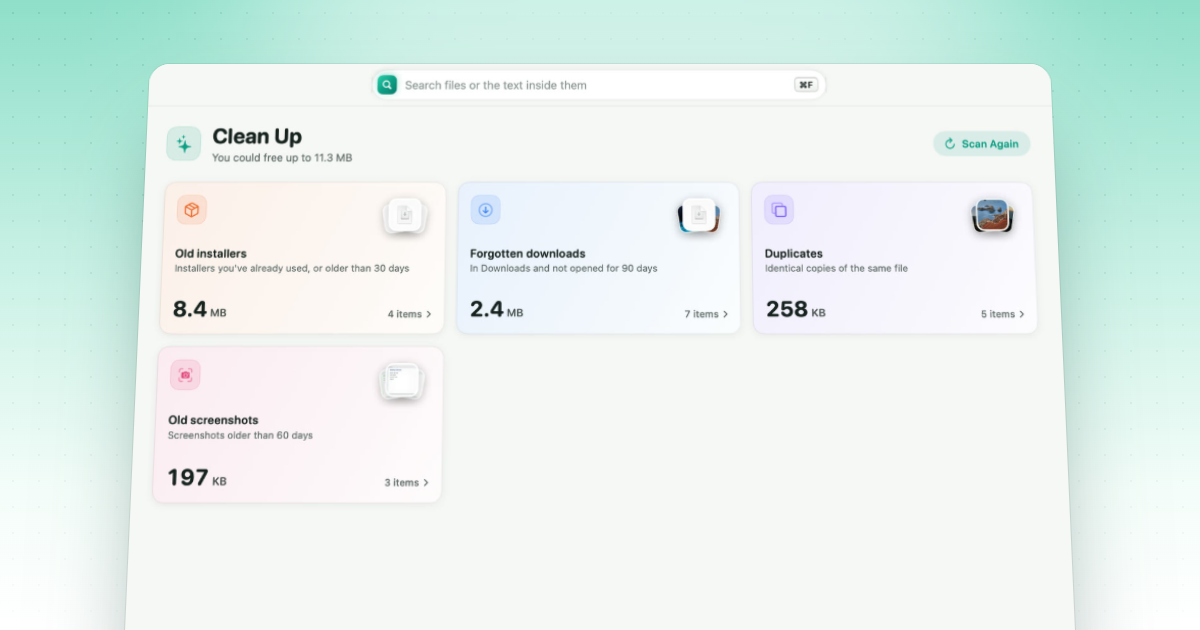
- Clean Up shows screenshots older than 60 days and how much space they take, so you can clear them out. Every change can be undone from History.

A small habit that helps
Even with search, it's worth telling macOS where screenshots should live. Press Shift + ⌘ + 5, click Options, and choose a "Screenshots" folder under Save to. Your Desktop stays clear, and Tidzy has one tidy place to watch.
And if all you need is the words from a screenshot you can already see, there's a faster way: copy text from any image by dragging it to your notch.
Try it on your own files
From $4.99, one time, for 1, 2 or 3 Macs, with a 14-day full refund. Everything runs on your Mac, and every action can be undone.