Your Mac Might Be Holding Your Passwords in Plain Sight. Here's How to Check.
Screenshots of passwords, ID scans and card photos pile up where you never look. Here's how to find them and what to do with each.

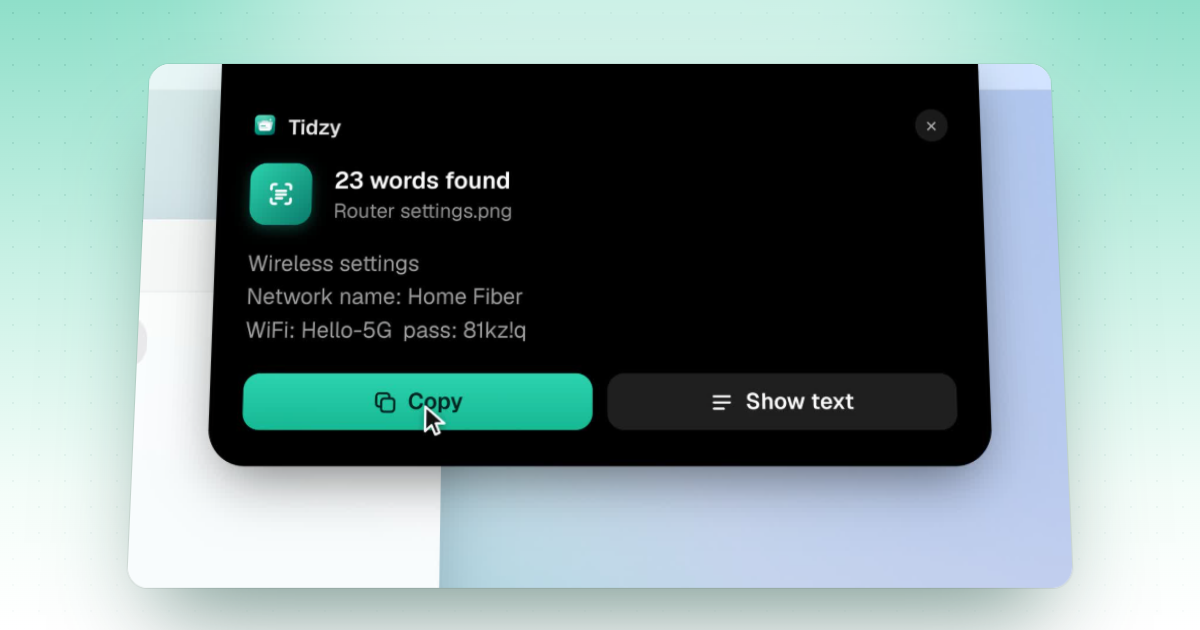
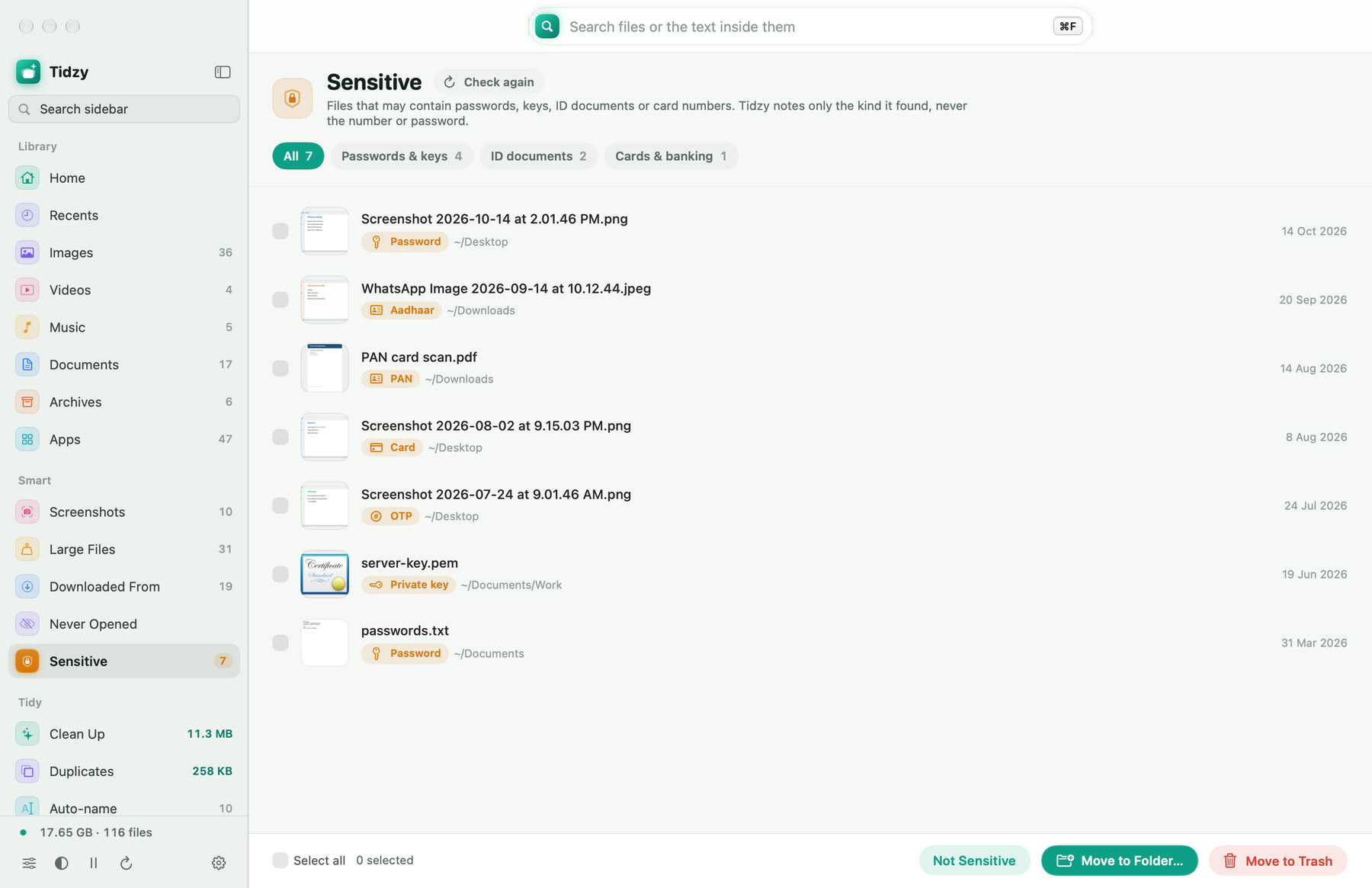
Most Macs quietly collect screenshots of passwords, ID scans, card photos and API keys, and they can't be found by name because they're called things like "Screenshot 2026-03-02". Tidzy's Sensitive screen reads your files on your Mac and flags these, recording only the kind of thing it found, never the password or number itself. Then you can move, trash or keep each one.
The problem: private things, saved "for a minute", kept for years
Think about the last few times you set something up.
A new phone, so you screenshotted the Wi-Fi password to type it in. A government form, so you photographed your ID card. An online purchase that wouldn't save your card, so you snapped a picture of it to "type in later". Two-factor setup, so you saved the backup codes somewhere safe, as a screenshot. A side project, with real API keys in a .env file.
Every one of those files was made for a good reason, used once, and forgotten.
Now they sit in Downloads, on the Desktop, in old project folders. Folders that sync to the cloud, get backed up to other drives, and travel with you to every new Mac. Nobody would ever leave their passport photocopy on a café table. But a scan of it in Downloads, synced to three devices, feels invisible, because you never see it.
Why you can't just search for them
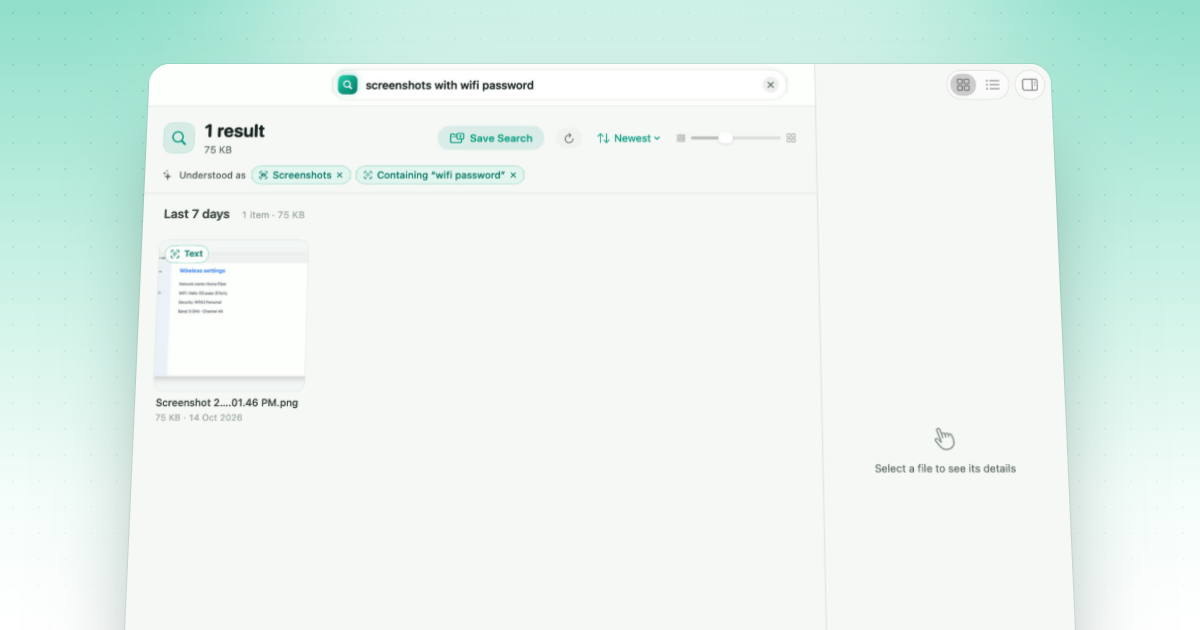
You can search file names for words like "password" or "passport", and it's worth doing. But the most common case slips right past it: a screenshot named Screenshot 2026-03-02 at 8.15.10 PM that happens to show a password. Or a photo called IMG_3317.HEIC that's actually your Aadhaar card.
The name tells you nothing. The only way to know what's in those files is to look inside them, and nobody is going to open thousands of images one by one.
The fix: let Tidzy look, on your Mac
Tidzy already reads the text in your screenshots, photos and PDFs (that's how its search works), so it can also notice when that text looks sensitive. Open Sensitive in the sidebar and you'll see files that look like they contain:
- Passwords and logins, including Wi-Fi and router passwords
- Private keys, like SSH keys and
.pemfiles - Card numbers
- ID documents, including Aadhaar and PAN
- One-time and recovery codes
- Secrets in code:
.envfiles, API keys and tokens (GitHub, Stripe, AWS, Google and more), and passwords inside connection URLs
It's built to be trusted. Tidzy records only the kind of thing it found, like "card number" or "private key". It never stores the number, the password or the key itself. And all of it happens on your Mac. Nothing is uploaded.
Then you decide, one click each. For every file you can move it to a safer folder, send it to the Trash, or mark it as fine if it's something you meant to keep. Anything you change can be undone from History.
You can also search for these directly, any time: sensitive screenshots, id documents, card details, passwords.
What to do with what you find
Passwords and logins. Save them in a password manager (the Passwords app on recent macOS, or one you already use), then trash the screenshot. If a password sat in a synced folder for a long time, consider changing it.
ID scans you still need. Keep one copy somewhere protected. Your Mac has a simple option built in: an encrypted disk image. Open Disk Utility, choose File > New Image > Blank Image, set Encryption to 256-bit AES and pick a strong password. It opens like a small drive when you need it and locks when you eject it. Then trash the loose copies.
Card photos. You almost never need these. Trash them.
Recovery codes. Store them in your password manager, next to the account they're for.
API keys and secrets. If a real key sat in a file for months, especially in a synced or shared folder, rotate it in the service's dashboard.
And for everything: make sure FileVault is on (System Settings > Privacy & Security > FileVault). It encrypts your whole disk, so if your Mac is ever lost or stolen, none of this can be read.
Keep it from happening again
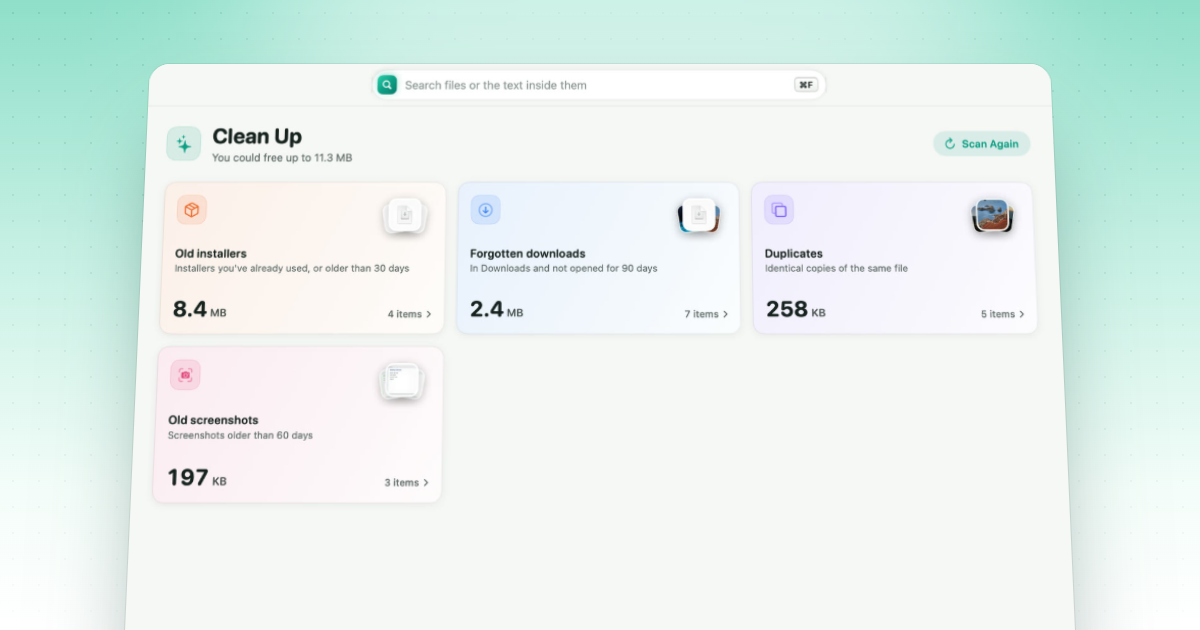
Sensitive files keep appearing in the same "I'll just screenshot this for a minute" moments. Tidzy keeps watching as new files arrive, so a quick look at Sensitive every few months is all it takes. And when you do screenshot something private on purpose, delete it the moment you're done.
It isn't dramatic security work. It just closes one of the most common gaps there is: private things, in plain sight, in folders nobody looks at anymore.
There's a shorter walkthrough in the guide How to find passwords and ID scans left on your Mac.
Try it on your own files
From $4.99, one time, for 1, 2 or 3 Macs, with a 14-day full refund. Everything runs on your Mac, and every action can be undone.