Afraid to Clean Up Your Downloads Folder? Here's How to Do It Safely
Installers, duplicates and forgotten files pile up because deleting feels risky. Here's how to clean up without the fear.
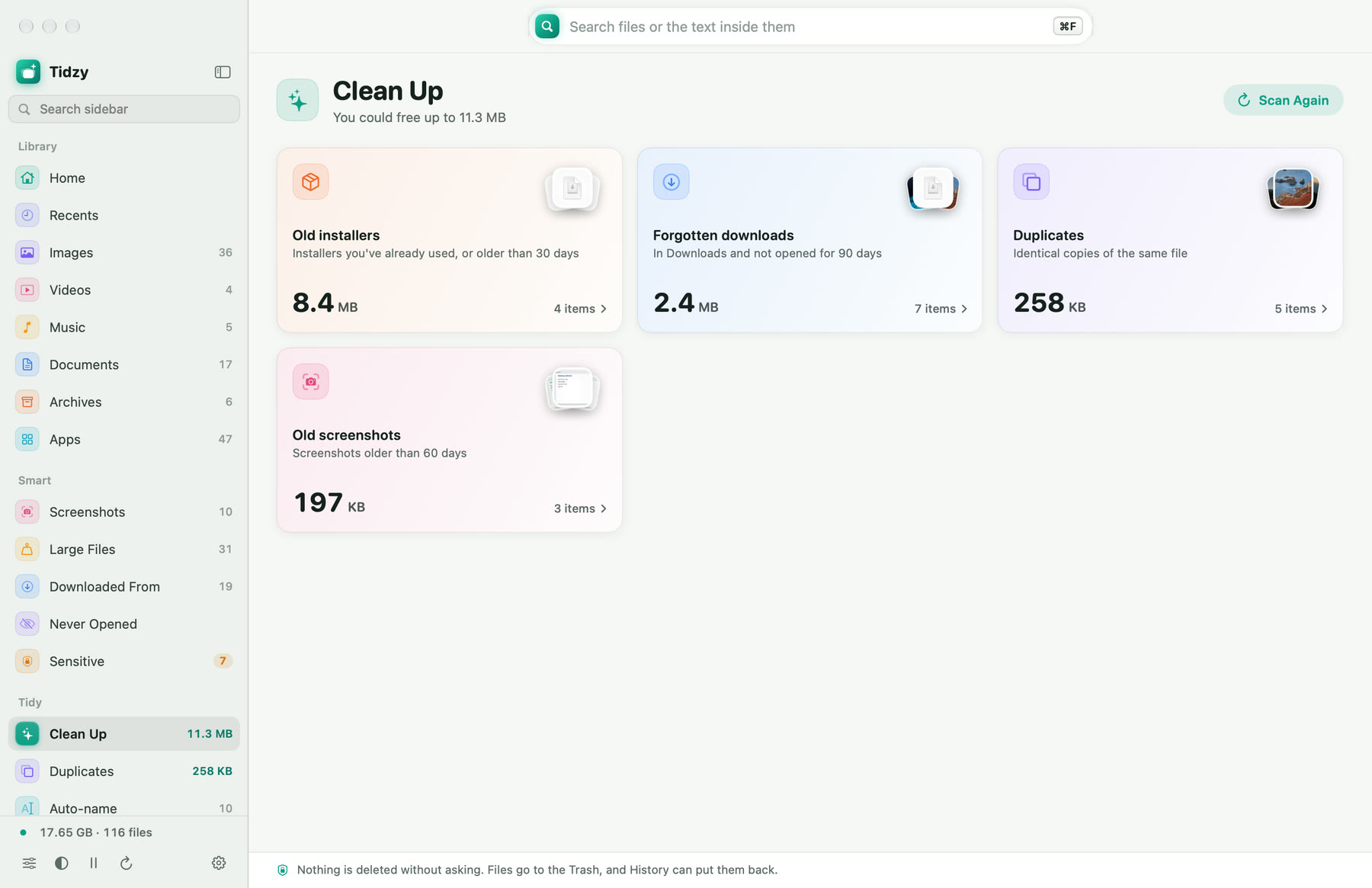
Downloads fills up with installers, duplicates and forgotten files, but most people never clean it because they're afraid of deleting something important. Tidzy's Clean Up sorts the clutter into clear groups with the space each would free, finds duplicates by their contents, shows where every file came from, and can undo any change.
The problem: everyone's Downloads folder is a mess, and cleaning it feels risky
Open your Downloads folder and sort it by size. On most Macs that have been in use for a year or two, the top of the list looks something like this:
- An installer for an app you installed long ago, still taking up gigabytes
- Three copies of the same PDF, named "file", "file (1)" and "file (2)"
- A zip of a project that wrapped up months back, sitting next to its unzipped folder
- A video someone sent you, downloaded twice
And somewhere in the middle, there's one file that actually matters. A contract, a tax form, a scan of something important.
That file is the reason the folder never gets cleaned. Deleting things is easy. Deleting the right things is stressful, because one wrong click and something important is gone. So the folder keeps growing, your disk keeps filling up, and "clean up Downloads" stays on the to-do list forever.
Why it's harder than it should be
macOS gives you the raw tools. In Finder you can sort by Size or Date Last Opened, and Get Info (⌘I) shows a "Where from" line for many downloads. But putting that together means going file by file, judging each one, and hoping you got it right.
Two things are missing entirely:
- There's no duplicate finder. Copies with different names, or in different folders, are basically invisible.
- There's no undo. Once something leaves the Trash, it's gone, so every decision carries weight.
The fix: Clean Up in Tidzy
Tidzy turns cleanup from a stressful chore into a two-minute review.
It sorts the clutter for you. Open Clean Up and the mess is already grouped into clear categories, each with the space it would free:
- Old installers: installers you've already used, or older than 30 days
- Forgotten downloads: files in Downloads you haven't opened in 90 days
- Old screenshots: screenshots older than 60 days
- Big old videos: over 500 MB and not opened in 6 months
- Unused apps: apps you haven't opened in 6 months
- Duplicates: identical copies of the same file
Click any card to review its files with thumbnails, keep what you want, and move the rest to the Trash in one go.
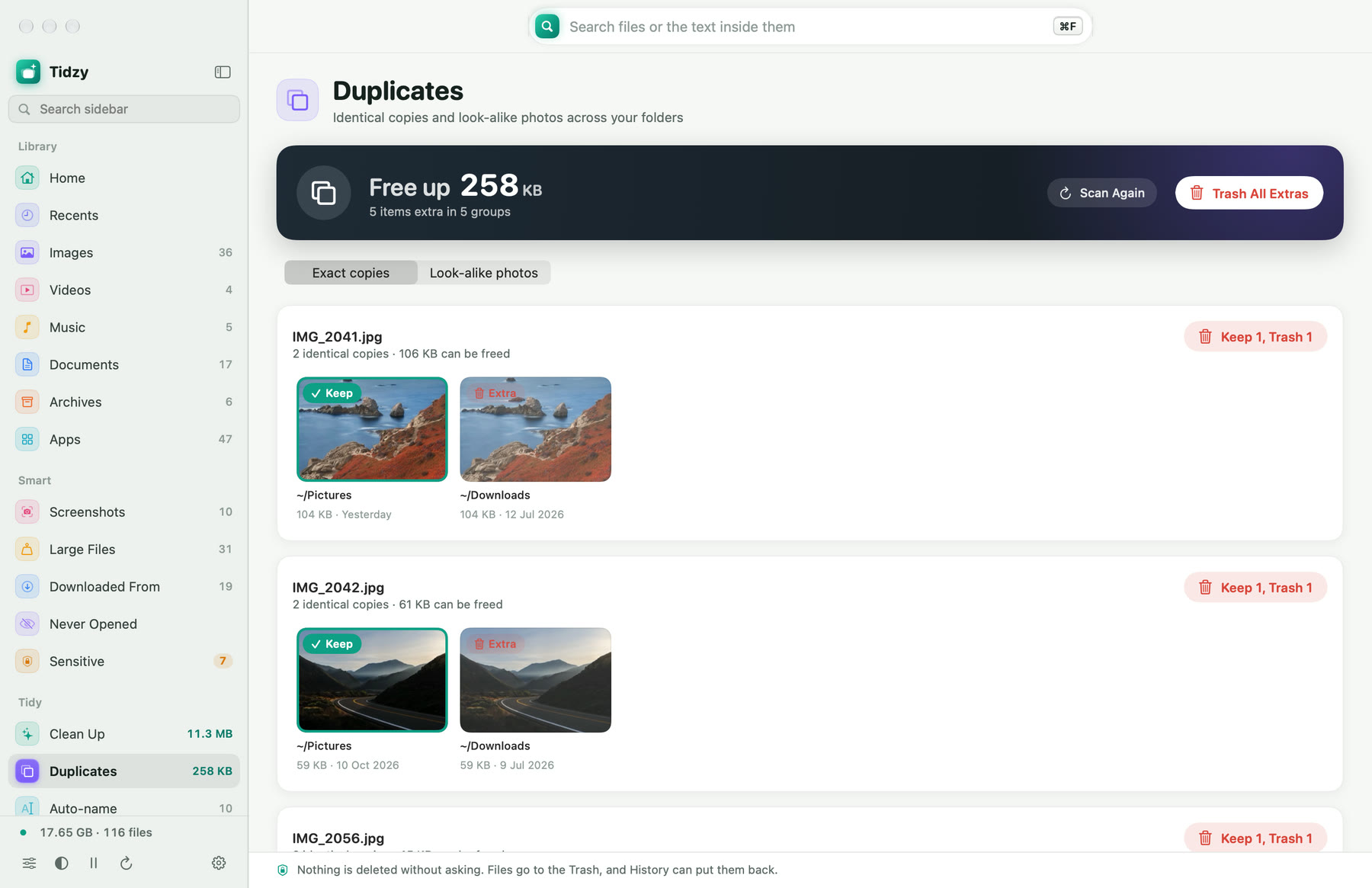
It finds duplicates by what's inside them. Tidzy compares file contents, not names, so "contract.pdf" and "contract (2).pdf" in different folders are caught. It also suggests which copy to keep: the one in the better folder, at the highest resolution, or the oldest one with the cleanest name. You can change its pick before trashing the extras.
It tells you where things came from. The Downloaded From screen groups every download by source: Gmail, WhatsApp, Slack, AirDrop, Chrome or any website. "Everything I've downloaded from WhatsApp" is one click, and for most people it's a surprising amount of forwarded images.
It makes mistakes cheap. Nothing is ever deleted outright. Files go to the Trash, and every change Tidzy makes (moving to the Trash, moving, renaming, zipping) is recorded in History with a one-click undo that puts things back exactly where they were.
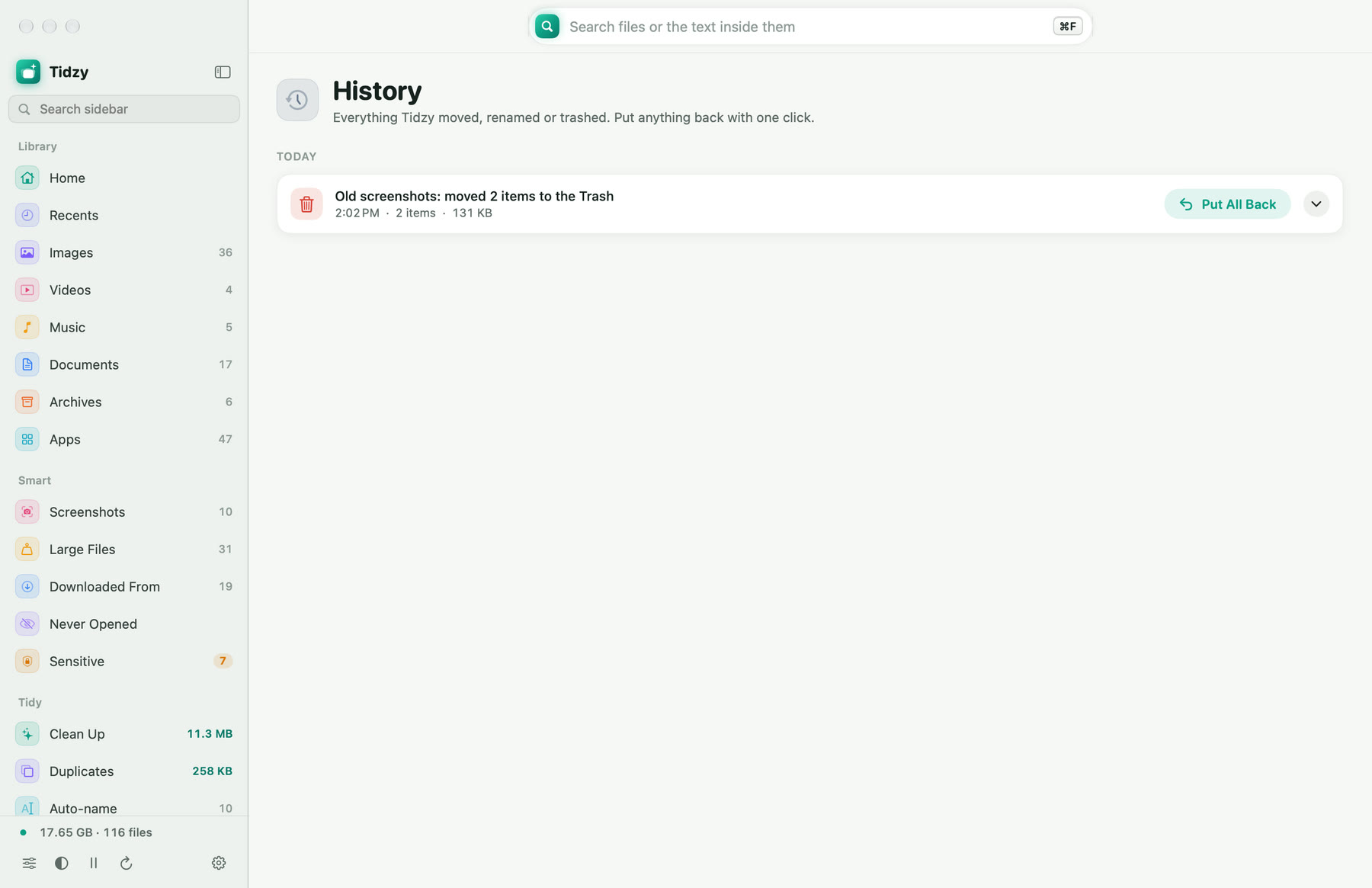
That's the part that changes everything. When a mistake takes one click to reverse, cleaning up stops being scary, and you actually do it.
Keep it clean without thinking about it
- Once a month, open Clean Up and clear the old installers. It takes about two minutes.
- Once a quarter, review forgotten downloads and duplicates.
- Not sure about a file? Check where it came from before you trash it.
- Have a backup. Time Machine (in System Settings > General) is still the best safety net for everything else on your Mac.
Common questions
Is it safe to delete installers (.dmg files)? Yes, once the app is in your Applications folder. The installer is just the box it came in.
Will cleaning Downloads break anything? No. Downloads isn't a system folder, and apps don't depend on files there.
What about "System Data" in Storage settings? That's caches and snapshots that macOS manages itself. Tidzy works on your own files and leaves system files alone.
For a broader look at reclaiming space, see How to free up space on your Mac, safely.
Try it on your own files
From $4.99, one time, for 1, 2 or 3 Macs, with a 14-day full refund. Everything runs on your Mac, and every action can be undone.