Stop Retyping Screenshots: How to Copy Text From Any Image on Your Mac
The text is right there in the image, and you still end up typing it out. Here's the one-drag fix.

Retyping text from screenshots is slow and error-prone, and the built-in ways to copy it only work once you've found and opened the image. With Tidzy's Drop to Read, you drag any screenshot, photo or PDF to your MacBook's notch and the text is ready to copy. No opening, no retyping, nothing uploaded.

The problem: the words are right there, and you still can't use them
It happens a few times a week, usually when you're in a hurry.
Someone sends a screenshot of an address and you need it in a delivery form. A colleague shares a slide with a block of code. Your bank emails a PDF with a reference number you have to paste into a payment. A friend sends a photo of the Wi-Fi password taped to the router.
The text is right there on your screen. You can read it. But you can't select it, so you do the one thing computers were supposed to save you from: you retype it. Character by character, eyes flicking between two windows, and somewhere along the way a 0 becomes an O, or a 1 becomes an l, and the password doesn't work.
It's a small problem. It's also the kind that eats five minutes at a time, every week, forever.
Why it's harder than it should be
macOS can actually read text in images. Open a picture in Preview or press Space for Quick Look, hover over the words, and you can select them. The Shortcuts app even has an Extract Text from Image action.
The catch is that every one of those starts with the image already found and open. Real life rarely works that way. The screenshot is in a chat thread. The photo is in Downloads, between forty others. The PDF is attached to an email. By the time you've saved it, found it, opened it and carefully dragged across the right lines, retyping would have been faster.
What's missing isn't text recognition. It's a way to get the text from wherever the image already is, in one move.
The fix: drag it to the notch
That's exactly what Drop to Read in Tidzy does.
- Start dragging any screenshot, photo or PDF. From Finder, the Desktop, Safari, Mail, Messages, wherever it is.
- A small drop zone slides out of your MacBook's notch. On Macs without a notch, it appears just under Tidzy's icon in the menu bar.
- Let go. Tidzy reads the text right there, on your Mac.
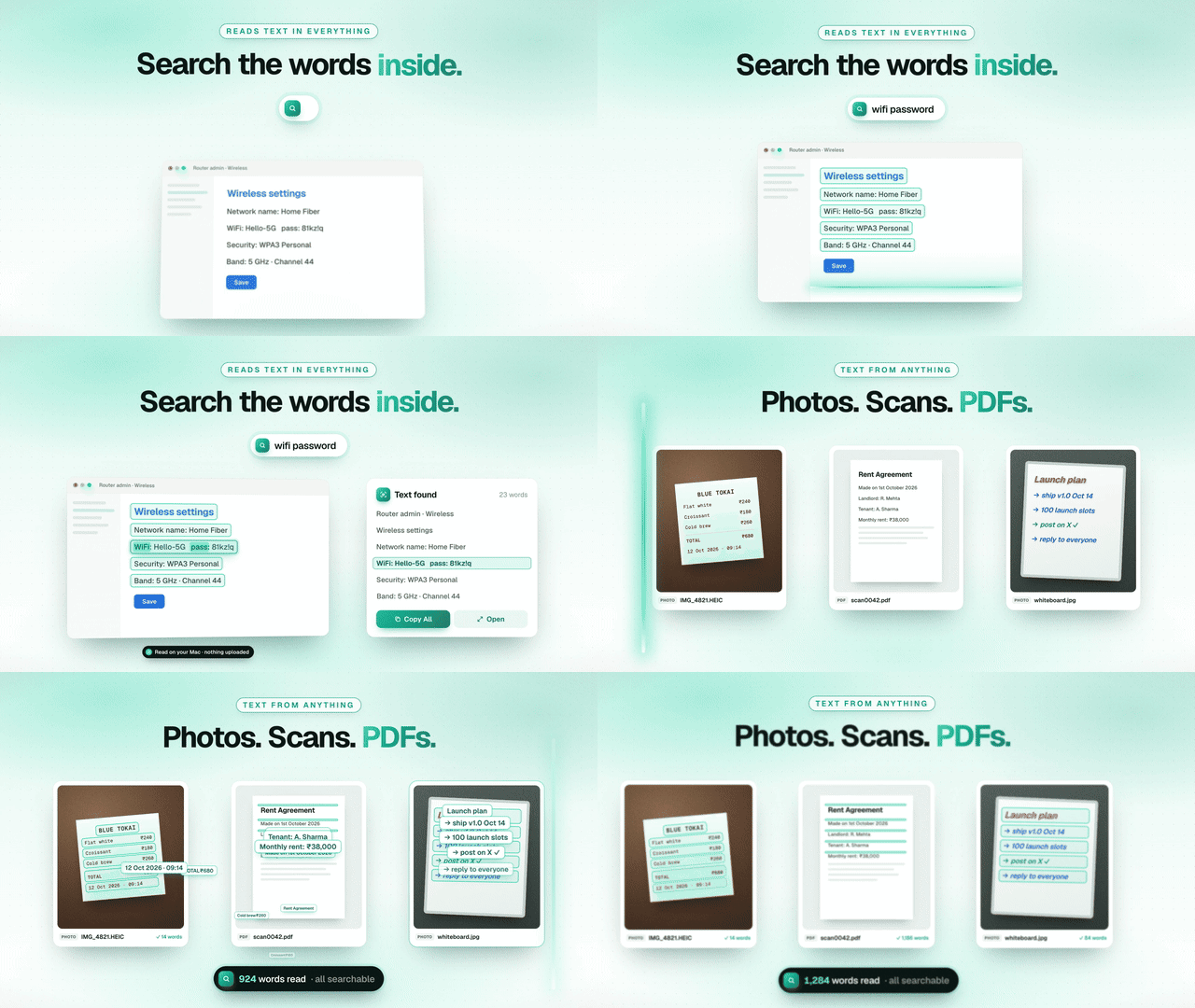
- Copy it. You see how many words it found and the first lines. Click Copy for all of it, or Show text to see every line.
That's it. No saving, no opening, no switching apps, no retyping.
A few things that make it pleasant to live with:
- It only appears when it's useful. Drag an image or a PDF and the zone slides out. Drag a folder, a zip or some text and nothing happens, so it never gets in your way.
- It's private by design. The text is read with Apple's on-device text recognition. Nothing is uploaded, ever.
- It handles more than screenshots. Photos of receipts, whiteboards, menus and slides, plus scanned PDFs.
Even better: text you've already got, searchable
Drop to Read solves "I need the words from this image right now". But Tidzy goes further: it reads the text in every screenshot, photo and PDF in the folders you choose, quietly, in the background.
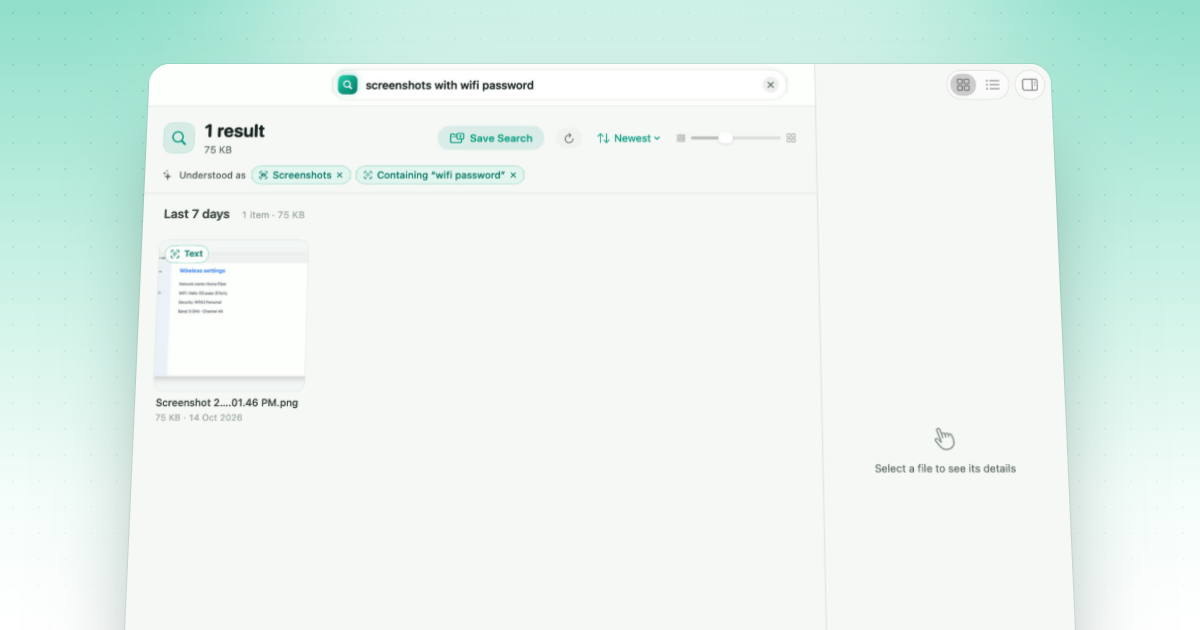
So the next time you need that code from a slide you screenshotted last month, you don't hunt for the image at all. Search for a word you remember from it, like "invoice september" or "wifi password", and Tidzy finds the image that contains it, even if it's called IMG_4821.HEIC. Press ⌘T on any result to open Show Text and copy any line.
More on that in How to find any screenshot on your Mac by what's in it.
Tips for perfect results
- Bigger text reads better. If the words in a screenshot are tiny, zoom in (⌘+) before you take it.
- Crop to what you need. Busy backgrounds and overlapping windows make any text reader work harder.
- Check critical numbers once. Recognition is very accurate, but for a password or an account number, a quick glance before pasting is worth it.
- Need it once, without an app? Live Text in Preview or Quick Look is a fine free option when the image is already open in front of you.
Try it on your own files
From $4.99, one time, for 1, 2 or 3 Macs, with a 14-day full refund. Everything runs on your Mac, and every action can be undone.