How to find any file on your Mac by describing it
You remember it was a PDF, that someone sent it last week, and roughly what it was about. That should be enough to find it.
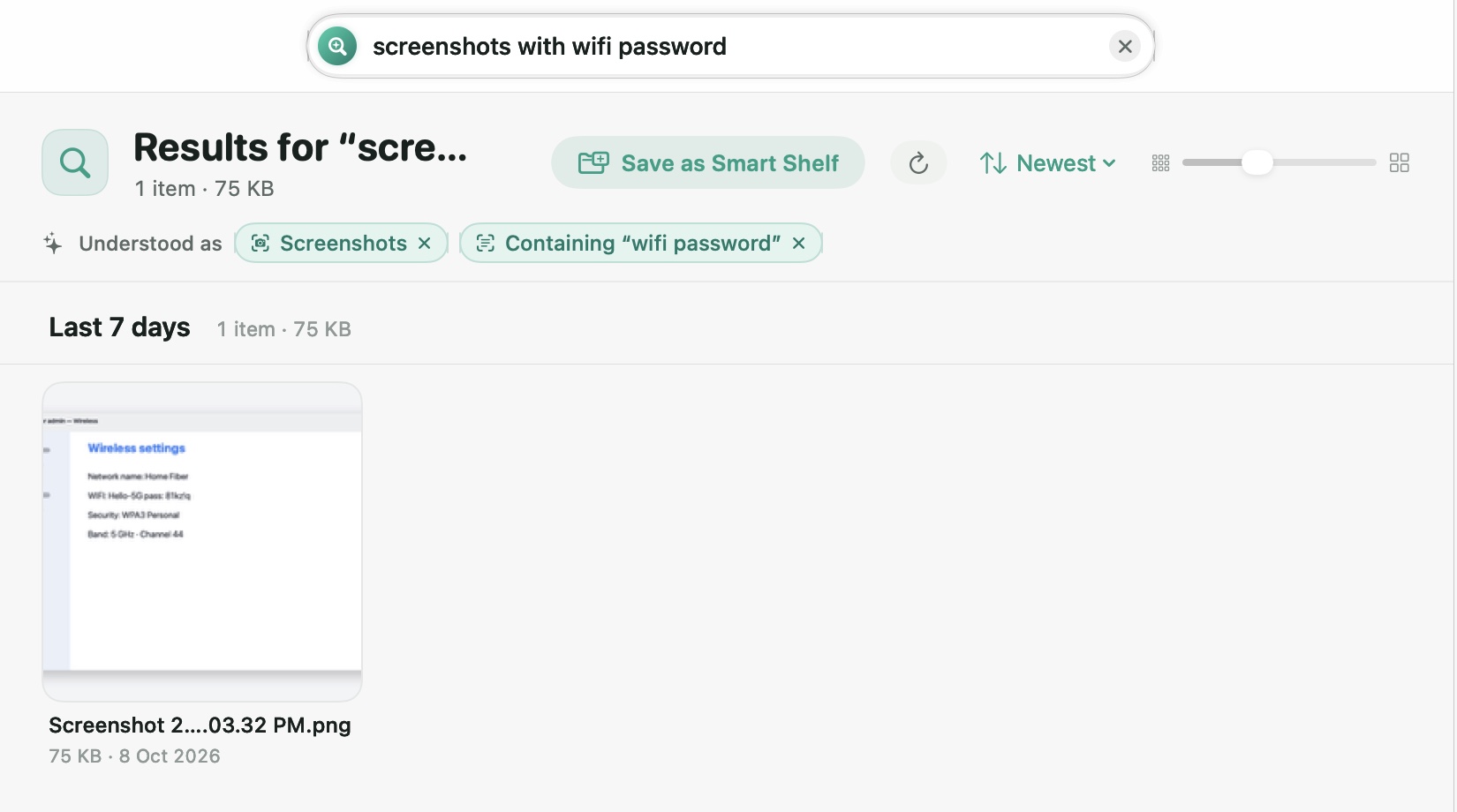
Open Tidzy (or press ⇧⌘Space from any app) and type what you remember, like “pdfs from gmail last week” or “screenshots with wifi password”. Tidzy turns that into filters for type, date, source and words inside the file, and shows the matches right away.
Search the way you remember
- Press ⇧⌘Space
Quick Find opens over whatever app you’re in. Or click the search bar at the top of the Tidzy window.
- Type what you remember
Mix anything: a kind of file (“pdfs”, “zips”, “screenshots”), a time (“yesterday”, “last month”, “in March”), a size (“over 100 mb”), where it came from (“from WhatsApp”) or words that appear inside it.
- Check the chips
Under the search bar Tidzy shows how it understood you, as chips like PDFs · From Gmail · Last week. Remove any chip to widen the search.
- Open, preview or reveal
Press Return to open, Space for Quick Look, or ⌘Return to show the file in Finder.
Things you can ask
| You type | Tidzy finds |
|---|---|
| pdfs from gmail last week | PDF attachments saved from Gmail in the last 7 days |
| screenshots with wifi password | Screenshots whose text mentions “wifi password” |
| zips I downloaded over 100 mb | Large archives in your downloads |
| contracts I never opened | Files mentioning “contract” that you’ve never opened |
| photos from whatsapp this month | Images saved from WhatsApp since the 1st |
It reads inside files, too
Tidzy reads the text inside PDFs and documents, and recognises text in screenshots and photos of documents using Apple’s Vision framework, on your Mac. So “boarding pass” finds the PDF even if it’s called eticket_83920.pdf.
Doing it without Tidzy
Finder can get you part of the way. Press ⌘F in a Finder window, then add rules with the + button, such as Kind is PDF and Created date is within last 7 days. Spotlight (⌘Space) also understands a few keywords like kind:pdf. Neither knows where a file was downloaded from, and neither reads the text in screenshots.
Try it on your own files
From $4.99, one time, for 1, 2 or 3 Macs. Everything runs on your Mac, and every action can be undone.